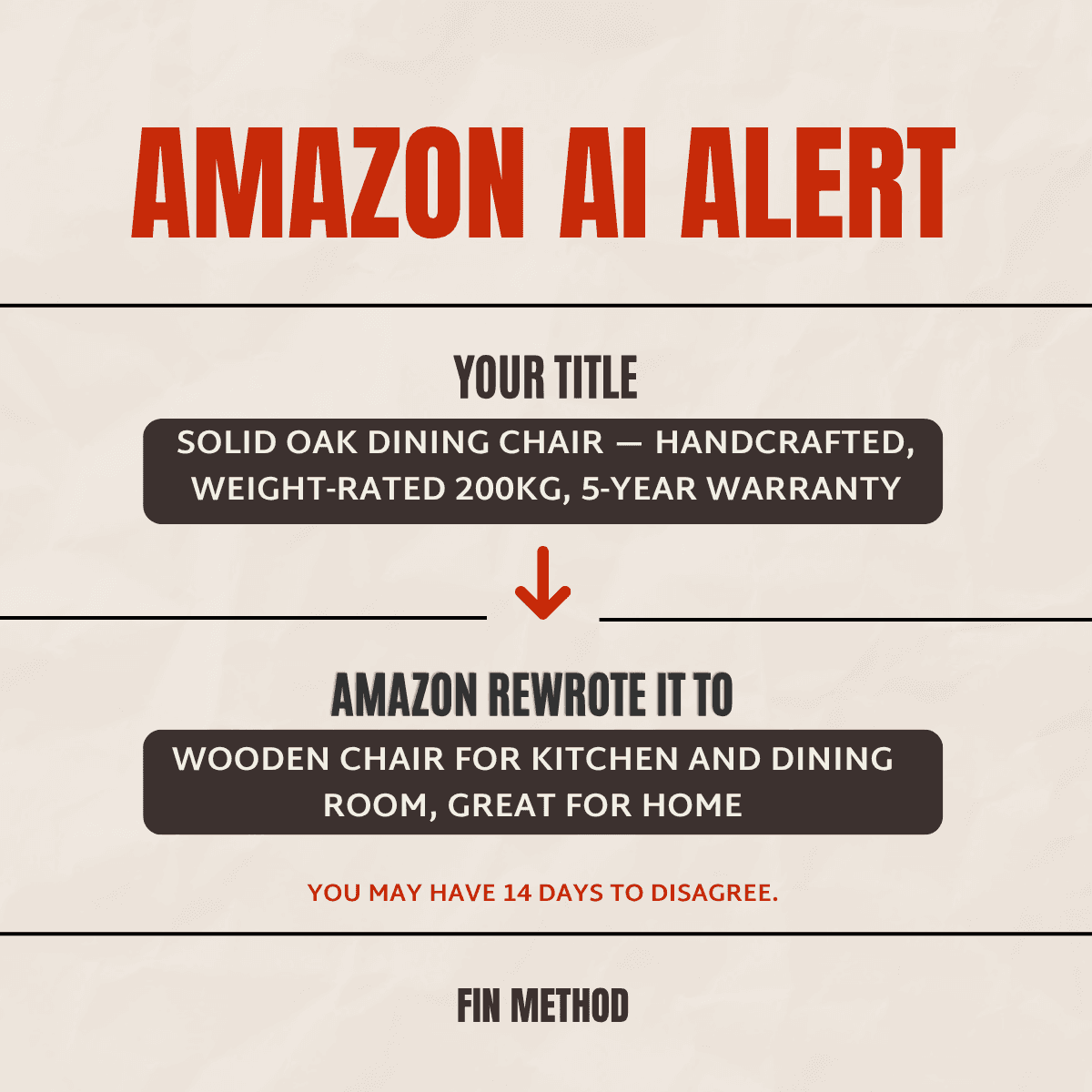
You logged in this morning and your product title was different.
Not catastrophically different. Just enough that you noticed. The bullet points had been rearranged. The "tea variety" attribute now said green instead of black. Somewhere in the description, a word you didn't write is now telling customers what your product is.
You didn't authorise it. Your VA didn't. Nobody on your team did. Amazon's AI did, and it sent you an email two weeks ago that you missed, and now the change is live.
Welcome to Review Listing Changes — the feature Amazon rolled out quietly across 2024 and 2025, then made non-optional. You cannot opt out. You cannot disable it. The official Amazon response on Seller Forums, verbatim:
"At this time Review Listing Updates is not optional and you cannot unenroll."
What you can do is catch the suggestions before they go live, disagree with the wrong ones, and keep your listing under your own control. This post is the operator's guide to doing exactly that — written by someone who's done it on actual catalogues, not someone who read the help docs once.
What's actually happening (the short version)
Amazon's AI scans your listings. It compares your content against patterns it's learned from millions of other products in your category. When it thinks your listing has the wrong attribute, an outdated title, a missing bullet, or content that doesn't match what customers seem to want — it generates a suggested change.
Then it gives you 14 days to respond.
If you agree, the change goes live. If you disagree (with a reason), your original content stays. If you ignore it, the change goes live anyway.
That last part is the one that breaks operators. Most sellers find out their listing changed after it happened — usually because conversion dropped, or because they checked the listing for an unrelated reason. By then the 14 days have elapsed and the AI has won the negotiation you didn't know was happening.
Where to find it in Seller Central
The tool is called Review Listing Changes (RLC). It replaced the older Excel-based "Review Listing Updates" tool that lived under Explore Brand Selection. If you remember downloading spreadsheets and uploading agree/disagree responses — that's the same workflow, now upgraded to a dashboard.
Two ways to find it:
Direct URL: https://sellercentral.amazon.com/selectiongaps/review-listing-updates
This is the most reliable route. Bookmark it. Not every account shows the dashboard card prominently in Seller Central, but the URL works for all brand-registered accounts.
Navigation: Seller Central → Manage Your Products → Review Listing Changes
You'll only see this if you're a primary user on a brand-registered account. If you're a secondary user, your primary needs to grant permission through User Permissions. If your account isn't brand-registered, you don't have RLC access at all — which is one of several reasons brand registration is worth the paperwork.
The 4-step workflow
This is the part you'll do over and over once you've set up a weekly check.
Step 1 — Open the dashboard
Hit the URL above. You'll see a list of pending suggestions, grouped by ASIN. Each row shows the field being changed, the current value, the suggested value, and the feedback due date.
The dashboard also shows changes from the last 60 days — both pending and already-published. This means you can audit what AI changed historically, not just what's queued. Useful when you're trying to figure out why a listing's conversion dropped six weeks ago.
Step 2 — Review each suggestion individually
Don't bulk-agree. Don't bulk-disagree. Each suggestion is its own decision.
Some of Amazon's AI suggestions are genuinely good. If a previous lister on your account put "Black" in the tea variety field when the product is actually green tea, the AI catching that is doing you a favour. Accept it and move on.
Most aren't. Most are AI confidence dressed up as authority. Suggestions to "improve" a title that converts at 18%. Recommendations to add attributes that don't apply to your product. Category reassignments that would suppress your listing entirely.
The trick is reading each one with the question: would I make this change if a junior account manager suggested it? If the answer is no, disagree.
Step 3 — For each suggestion, choose Agree or Disagree
Agree — the change goes live, no further action needed.
Disagree — you'll be prompted for a reason. This matters. A weak reason ("I don't want to") gets logged but the AI learns nothing. A specific reason ("This product is a green tea blend; the title 'Black Tea' would misrepresent the SKU and trigger return claims") tells Amazon's system why the suggestion was wrong, which (in theory) improves future recommendations on this listing.
In practice, the AI keeps suggesting the same thing repeatedly on some ASINs. One automotive seller on the Amazon forums put it bluntly:
"I have over 1000 ASINs. Amazon, please STOP."
You may have to disagree with the same suggestion three or four times before it stops resurfacing. This is a known problem. Amazon is aware. Don't expect the loop to break after one disagreement.
Step 4 — Track what happens
After you submit your response, the status moves to Feedback Received. The change either goes live (Agree) or doesn't (Disagree). Either way, the entry remains visible in the 60-day audit window so you can verify Amazon actually honoured your response.
If a Disagree was somehow ignored and the change went live anyway (it happens), contact Seller Support with the case ID and request manual reversal. Be specific. Reference the ASIN, the date, the attribute, and the original Disagree submission.
If you missed the 14-day window
The change already went live. The original content is gone. Now what?
You have two options.
Option 1 — Manually re-edit the listing back to your original content. Standard listing amendment workflow. Edit the title/bullets/attributes in Seller Central, save, and the listing updates. Quick fix.
The risk: Amazon's AI may flag your manual edit as a new suggestion to review, and you're back in the loop. Some sellers report being stuck in ping-pong cycles where they edit, AI suggests reverting their edit, they disagree, AI suggests it again. The seller-forum complaints about this are legion.
Option 2 — Open a case with Seller Support. Reference the AI change, provide the dates, and request manual reversal at the catalogue level. This sometimes results in the AI being told to leave the listing alone going forward. No guarantees.
Use Option 1 for one-off corrections. Use Option 2 if the same AI suggestion keeps reappearing on the same ASIN, or if the change is already affecting conversion.
Don't confuse this with "Enhance My Listing"
While we're here: Amazon has another AI feature called Enhance My Listing, found under the Product Details tab when editing a listing. It looks similar but it's the opposite tool.
Review Listing Changes = Amazon's AI suggesting changes to you, with you defaulting to agree.
Enhance My Listing = You actively requesting AI suggestions from Amazon, with you defaulting to ignore.
Most operators find Enhance My Listing produces about the same quality of suggestions as RLC — meaning some good, mostly not — but at least you're choosing when to invoke it. If you've never used it, the cost of trying is low. If you have used it and weren't impressed, you weren't alone. One seller forum post summarised the experience:
"Not surprisingly, the AI's only recommendation was to restore the sort of faulty title it had previously forced on us — that we had to fix manually."
The weekly habit that protects your catalogue
The single biggest mistake operators make with RLC is treating it as something to handle when notified. Amazon's email notifications are inconsistent. Sometimes you get them, sometimes you don't. The homepage dashboard card sometimes appears, sometimes doesn't.
The fix is mechanical: add RLC to your weekly Amazon admin block.
Once a week, open the dashboard URL. Spend 10 minutes reviewing pending suggestions. Disagree with the wrong ones, accept the right ones, log the day. That's the entire process.
For accounts with under 100 ASINs, this is maybe 15 minutes a week. For larger catalogues it's longer — the operator quoted above with 1,000 automotive ASINs is genuinely facing hours of weekly work. There is no elegant solution to that scale problem yet. Amazon has not released a bulk-disagree tool. Until they do, large sellers either delegate the work, batch it across team members, or accept that some AI suggestions will go live.
What this means in 2026
Amazon's AI is going to keep doing this. It's going to keep getting more aggressive. The trend is clear: Amazon wants higher data quality at scale, and it's chosen to get there by overriding seller content unless sellers actively object.
The seller's job has shifted. Listing content used to be something you wrote once and forgot. Now it's something you defend continuously. The brands that win on Amazon in 2026 are the ones who treat catalogue integrity as a recurring operational task, not a one-time launch task.
Set the weekly check. Hold the line.
Free downloadable playbook — the 5-step response process + rebuttal template
I've built a free 2-page playbook that turns this post into an operational tool.
The Amazon RLC Response Playbook (download as PDF) — page 1 covers the 5-step weekly response process plus a decision tree for accepting or rejecting each type of AI change. Page 2 is a copy-paste rebuttal template with conditional paragraphs for the three most common rejection scenarios (specifications changed, brand voice altered, keyword strategy disrupted). Print-friendly. Share-ready for your team.
Free. No email required. Read online, download, use, share.
Before you engage anyone, download the response playbook and start running the weekly review. Ten to fifteen minutes a week catches AI rewrites before they cost you conversions.
If your listings need more than a review process — if the underlying copy needs rewriting to survive Amazon's AI review in the first place — Fin Method's Amazon SEO Refresh (£295) rewrites one listing with keyword strategy, brand voice, and RLC-resistant copy. Amazon Listing Amendments (£120) handles field-by-field updates and rebuttal drafting for suppressed or rewritten ASINs. Fixed price. No retainers.